返回 Apps

macOS menu bar app

FoldAway

为 MacBook 带来 iPhone Duo 风格的折叠效果:合上屏幕时画面随之折叠,打开时重新出现,完全跟随真实的铰链角度。

v1.1.0更新于 2026年10月28日macOS免费

macOS 14+ · Universal · 1.4 MB · dkb-clamshell_1.1.0_universal.dmg

  • 配备屏幕开合角度传感器的 MacBook:16 英寸 MacBook Pro(2019 年)、14 英寸和 16 英寸 MacBook Pro(2021 年及以后)、MacBook Air(M2,2022 年及以后)。13 英寸 MacBook Pro、M1 MacBook Air 和台式 Mac 没有该传感器

FoldAway 是 Mac 应用。请在 Mac 上打开此页面进行下载。

3 步完成安装

  1. 打开 dkb-clamshell_1.1.0_universal.dmg,在窗口中将 FoldAway 拖到 Applications 文件夹。
  2. 打开 FoldAway。首次打开时,macOS 会显示 未打开“FoldAway”,请点按“完成”。
  3. 前往“系统设置”›“隐私与安全”,向下滚动,在关于 FoldAway 的提示旁点按“仍要打开”,然后再次点按“仍要打开”并输入密码确认。
或者在第 1 步之后,在“终端”中运行以下命令,代替第 2、3 步:
xattr -dr com.apple.quarantine "/Applications/FoldAway.app"
  • Driven by the real hinge angle, 60 fps
  • Slow close, normal close or a slam all look right
  • Reveals itself again when you open the lid and unlock

以下应用详情为英文。

Frame by frame

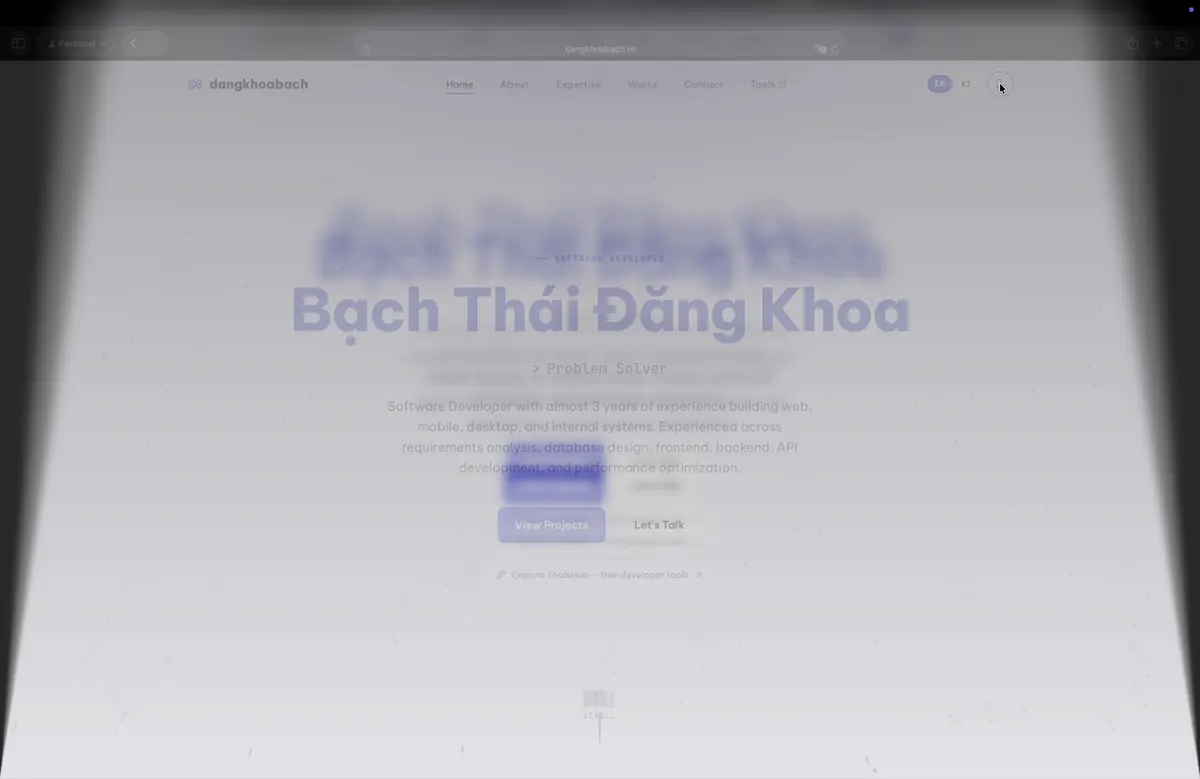
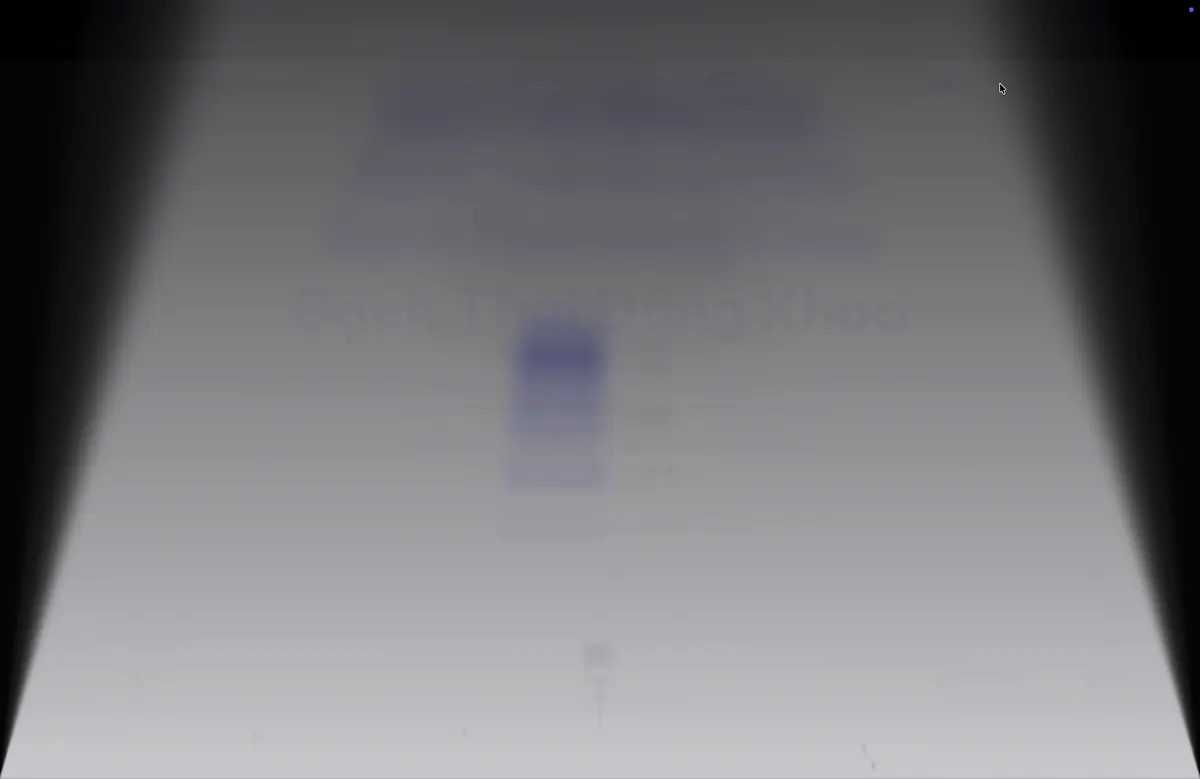
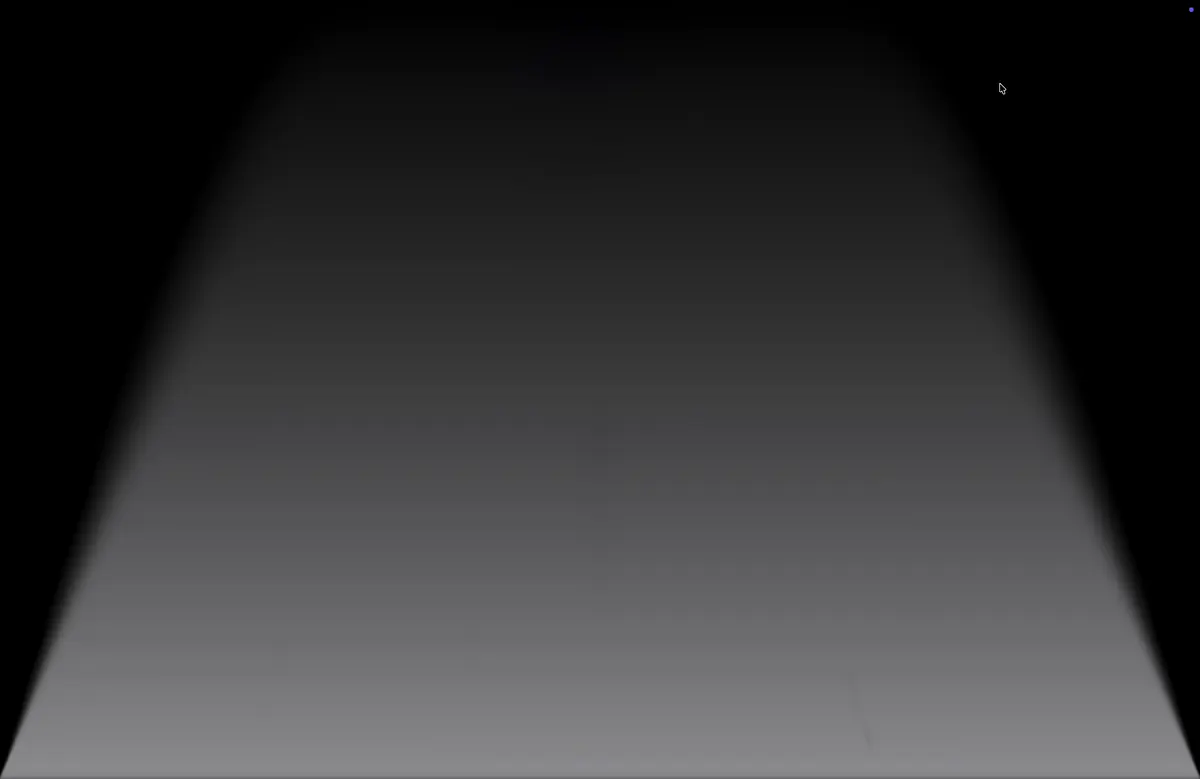
One close, four moments

Captured from the app with the preview driven instead of the lid. The far edge stretches and narrows, blur and shade spread from the hinge, and the last degrees fade to black.

  • The content stays where it was, only the panel moves
  • Blur and darkness graded by distance from the hinge
  • Complete at the angle you choose, 25° by default

  1. FoldAway: Lid at restLid at rest
  2. FoldAway: Blur begins, panel tiltsBlur begins, panel tilts
  3. FoldAway: Folding underFolding under
  4. FoldAway: Fade to blackFade to black

Two renderers

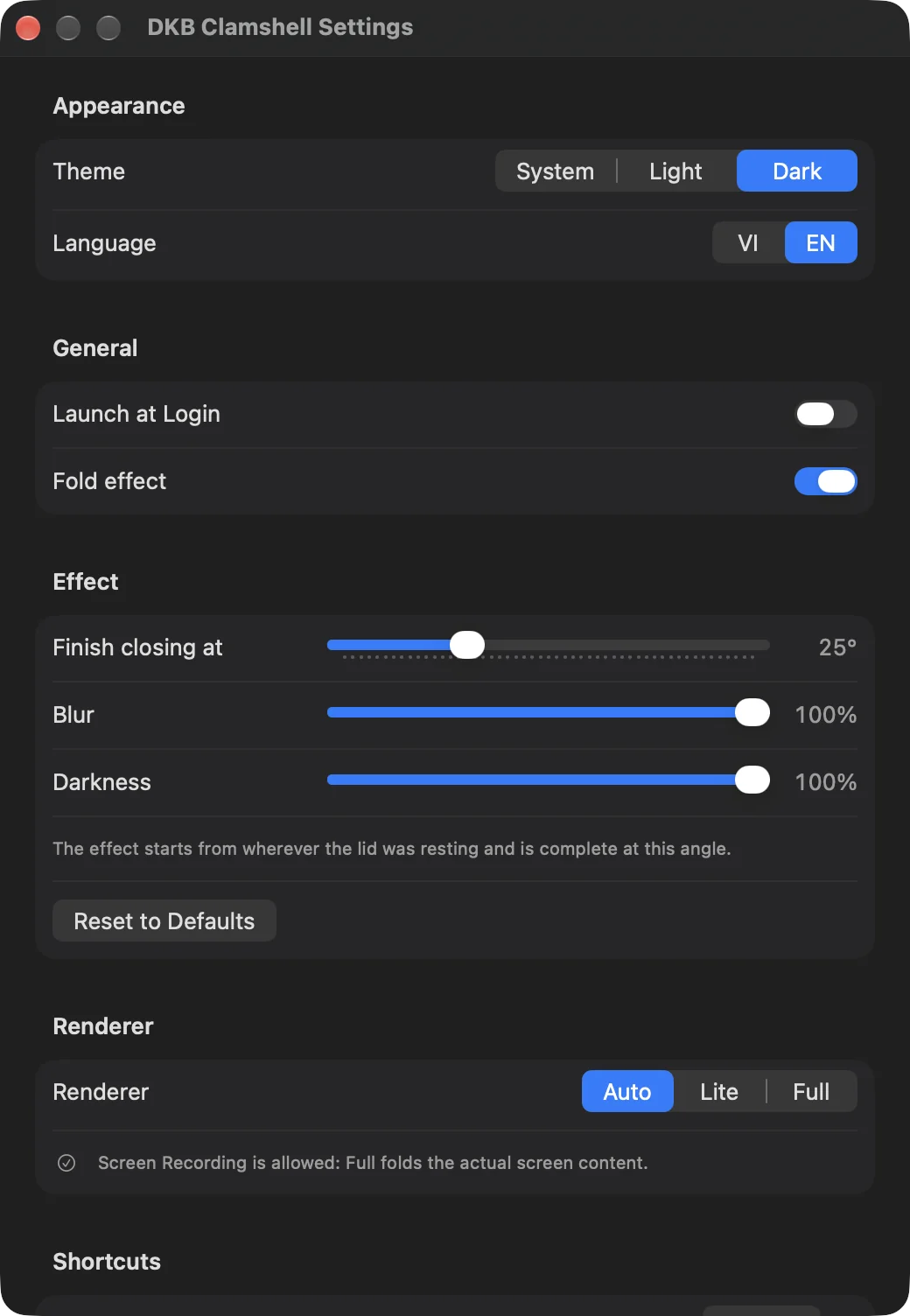
Full or Lite, tuned to taste

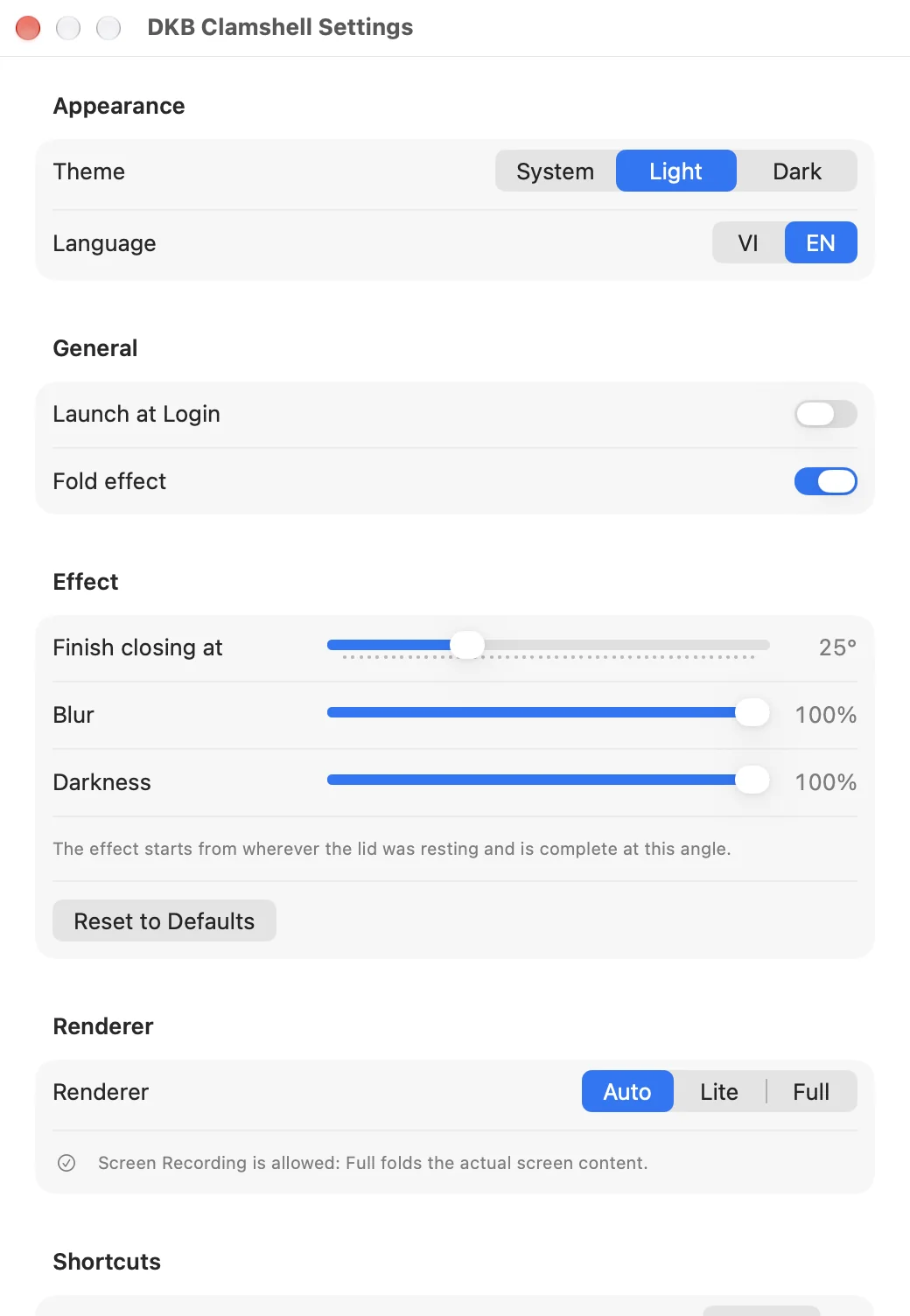
Full folds the actual screen content and needs the Screen Recording permission, which macOS re-confirms now and then. Lite uses the system blur and works without any permission. Auto picks for you.

  • Finish angle, blur strength and darkness as sliders
  • Reset to defaults in one click
  • Light, dark or system appearance, English and Vietnamese
FoldAway: Full or Lite, tuned to tasteFoldAway: Full or Lite, tuned to taste

Escape hatches

Turn it off from anywhere

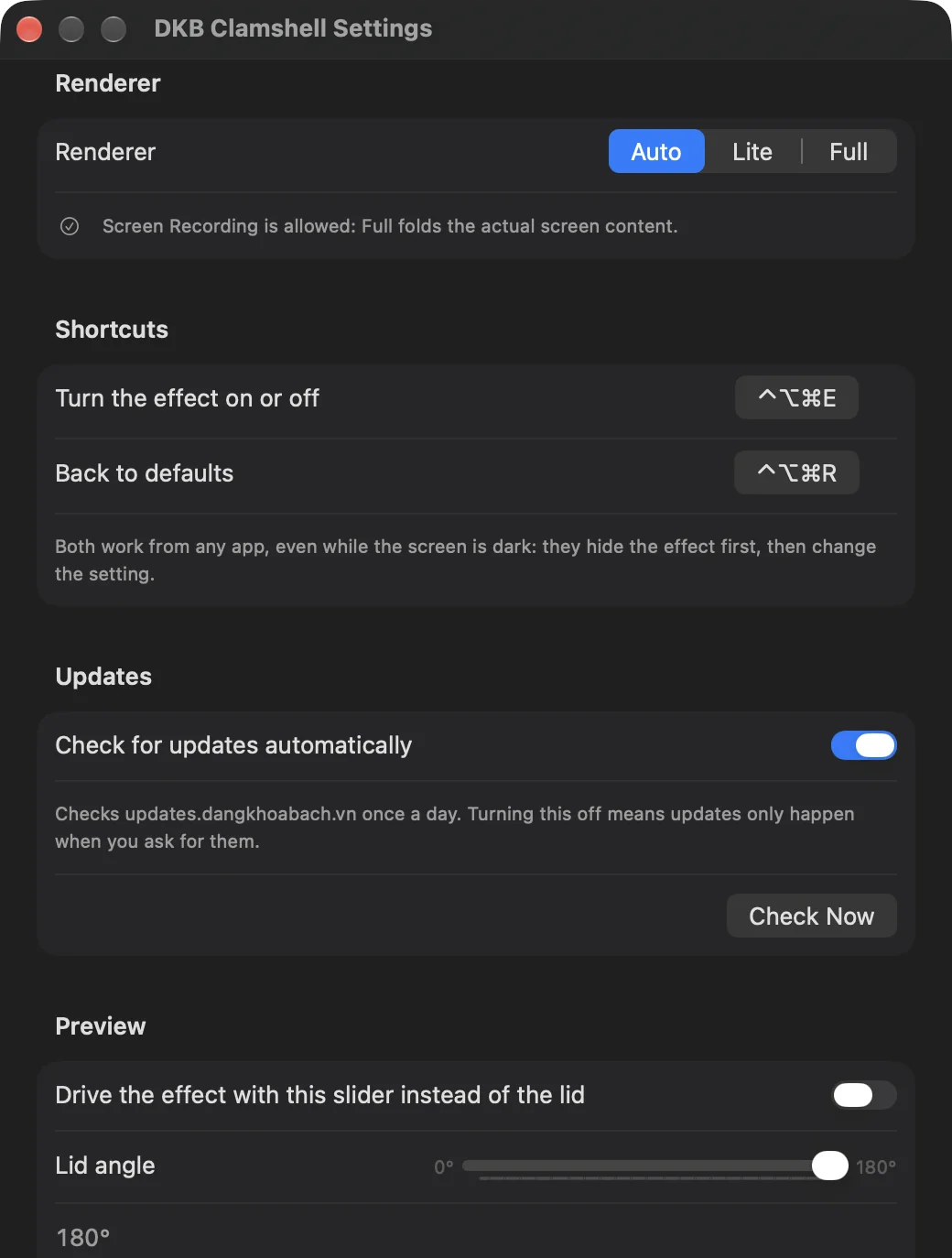
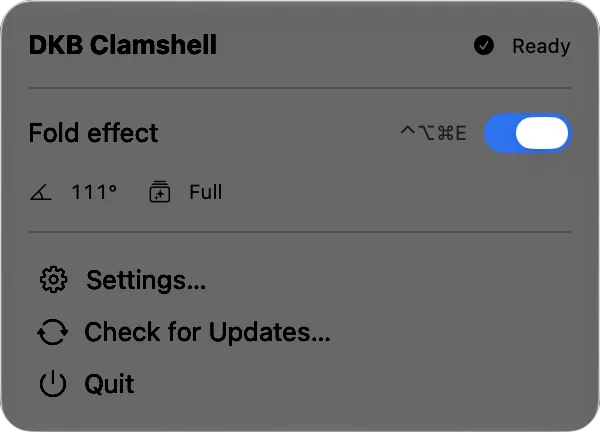
Ctrl+Opt+Cmd+E switches the effect off and Ctrl+Opt+Cmd+R restores the defaults, from any app, even while the screen is dark. Both can be re-recorded. A preview slider drives the effect by hand so you can tune it without closing the lid.

  • Global shortcuts hide the effect first, then change the setting
  • Preview slider from 180° to 0°
  • Sparkle keeps the app up to date
FoldAway: Turn it off from anywhereFoldAway: Turn it off from anywhere

Also in the box

  • Ignores the mouse and keyboard, never gets in the way
  • Works above full-screen apps and on every Space
  • The screen is read only for the second the lid is closing; nothing is stored, nothing leaves your Mac
  • Launch at login
  • MacBooks with the lid angle sensor: 14" and 16" MacBook Pro (2021 and later), MacBook Air M2 and later, MacBook Pro 16" (2019)
  • Only the built-in display; the opening direction plays after you unlock

简介

FoldAway is a small menu bar app for macOS that gives your MacBook the fold transition Apple designed for iPhone Duo. As you close the lid, the picture stays anchored in space while the panel folds under it: the far edge stretches and narrows, blur and shade spread from the hinge outward, and the screen fades to black just before it disappears. Open the lid and unlock, and the picture un-blurs and brightens back in. Nothing is on a timer: every frame follows the lid angle sensor, so a slow close, a normal one and a slam all look right. It is free and open source under the MIT license.

Key features

  • Driven by the hinge: reads the MacBook's lid angle sensor and smooths it to 60 fps, so the effect starts the moment the lid moves and tracks your hand; stop the lid anywhere and the screen comes back after a second
  • Two renderers: Full folds the actual screen content (needs the Screen Recording permission), Lite uses the system blur and works without any permission; Auto picks for you
  • Tunable: the angle where the fold completes, blur strength, darkness, fold direction and the reveal after opening the lid, with a slider that previews any lid angle before you close the lid
  • Panic shortcuts: Ctrl+Opt+Cmd+E turns the effect off and Ctrl+Opt+Cmd+R restores the defaults, from any app, even while the screen is dark, and both can be re-recorded
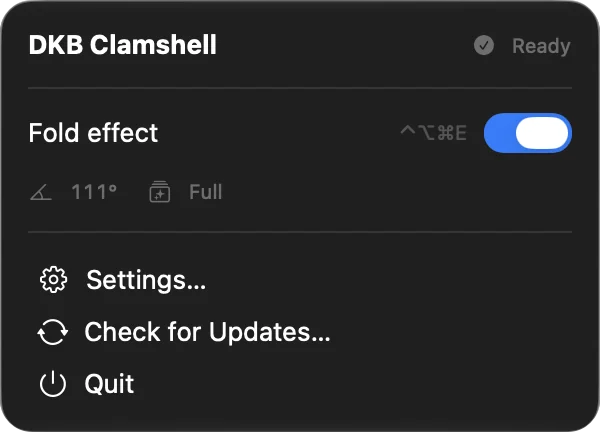
  • Stays out of the way: no Dock icon, a single menu bar panel with the live lid angle, ignores the mouse and keyboard, works above full-screen apps and on every Space
  • Light, dark or system appearance, English and Vietnamese, launch at login, Sparkle updates
  • Private by design: the screen is read only while the lid is moving, nothing is stored, and the only network call is the daily update check, which you can turn off

Requirements and limits

  • macOS 14 Sonoma or later
  • A MacBook with the lid angle sensor: MacBook Pro 16" (2019), MacBook Pro 14" and 16" (2021 and later), MacBook Air (M2, 2022 and later). The 13" MacBook Pro, the M1 MacBook Air and desktop Macs don't have it; the app tells you and does nothing
  • Only the built-in display is affected
  • macOS doesn't let any app draw over the Lock Screen, so the opening effect plays once you have unlocked

Good to know

  • FoldAway was called DKB Clamshell up to version 1.0.3. It is the same app, so updating keeps your settings and the Screen Recording permission, and the app in Applications keeps its old file name

版本历史

仅可下载最新版本,旧版本仅供参考。

  1. v1.1.0最新

    New

    • After the screen wakes, for example when you open the lid, unlocking now reveals the screen: the picture un-blurs and brightens back in. Turn it off with "Reveal the screen after opening the lid" in Settings › Effect. Locking and unlocking at your desk shows nothing

    Changed

    • DKB Clamshell is now FoldAway, and it is open source under the MIT license: github.com/dangkhoabach/FoldAway
    • Your settings and the Screen Recording permission stay as they are. After this update the app in Applications keeps its old file name, DKB Clamshell
  2. v1.0.3

    Fixed

    • Opening the lid after the Mac had slept with it closed could leave a black screen with the purple recording dot, and only a forced restart got out of it. This no longer happens
    • The effect no longer starts again once the lid is already shut, and it always clears when the lid comes to rest
    • Nothing is drawn over the Lock Screen anymore: the effect pauses while the Mac is locked and resumes after you unlock
    • The ⌃⌥⌘E and ⌃⌥⌘R shortcuts now always clear the screen
    • Closing the lid while an external display is connected now ends the effect right away
  3. v1.0.2

    What's new

    • Choose which way the screen folds in Settings › Effect › Direction: Top down (the default, as before) or Bottom up, where the picture sinks from the bottom edge instead of the top
    • Works with both the Full and Lite renderers; switching takes effect immediately, even mid-preview
    • Reset to Defaults puts it back to Top down
  4. v1.0.1

    Fixes for a lid that stops part-way.

    Fixed

    • The screen comes back on its own about a second after the lid stops moving, at whatever angle you left it. You no longer have to open it past where it was before
    • That angle becomes the new resting point: lower the lid further and the fold transition plays again from there

    Improved

    • Coming back is a transition too: the picture flattens out, clears and brightens over a third of a second instead of cutting straight to the desktop

    Closing the lid all the way still ends in black and stays that way until the Mac sleeps, so a quick reopen unfolds with the hinge as before.

  5. v1.0.0

    First public release.

    What's new

    • Fold transition driven by the lid angle sensor: content stays anchored while the panel folds, with blur and shade graded from the hinge and a fade to black at the end
    • Full renderer (folds the real screen content, Screen Recording permission) and Lite renderer (system blur, no permission), chosen automatically or by hand
    • Settings: end angle, blur, darkness, renderer, preview slider, launch at login, light/dark theme, English and Vietnamese
    • Global shortcuts to turn the effect off (Ctrl+Opt+Cmd+E) or reset it (Ctrl+Opt+Cmd+R), even while the screen is dark
    • Menu bar panel with status, live lid angle and quick toggle
    • Automatic updates through Sparkle