Utilitários do dia a dia para o Mac, fáceis: minimize pelo Dock, ⌘Tab entre janelas, histórico da área de transferência, uma prateleira de arquivos, conversão rápida, extração de RAR e 7z, sempre no topo, conta-gotas, Mac acordado e limpeza.
v1.3.1Atualizado em 6 de novembro de 2026macOSGrátis
EasyDock é um app para Mac. Abra esta página no seu Mac para baixá-lo.
Instale em 3 passos
Abra EasyDock-1.3.1.dmg e arraste EasyDock para a pasta Applications na janela.
Abra EasyDock. Na primeira vez, o macOS o bloqueia com “O Item EasyDock Não Foi Aberto”: clique em OK.
Vá em Ajustes do Sistema › Privacidade e Segurança, role para baixo e clique em Abrir Mesmo Assim ao lado do aviso sobre EasyDock; depois confirme com Abrir Mesmo Assim e sua senha.
Ou, depois do passo 1, execute isto no Terminal em vez dos passos 2 e 3:
Alerts when the Mac runs hot or the battery runs low
Quit and Force Quit, always asked first
Os detalhes deste app abaixo estão em inglês.
Window switcher
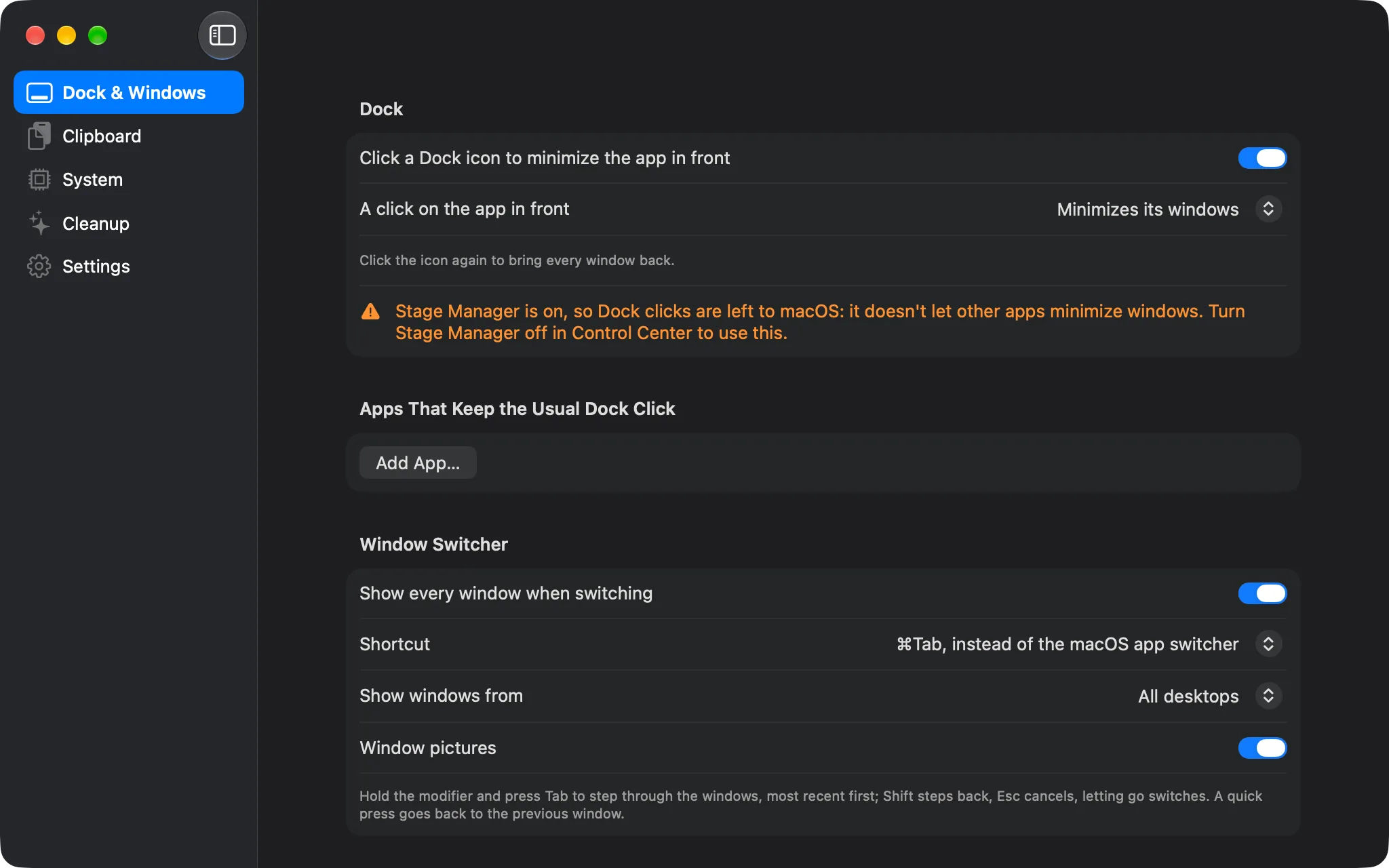
⌘Tab switches windows, not just apps
Every window with a picture and its title, most recently used first, including minimized windows and windows on other Spaces. A quick ⌘Tab goes back to the previous window; hold ⌘ to see them all, Tab and the arrows to move, Esc to cancel.
Windows from every desktop, or only the current one
A picture of each window, or the app's icon
⌥Tab instead, to leave the system's ⌘Tab alone
Dock click
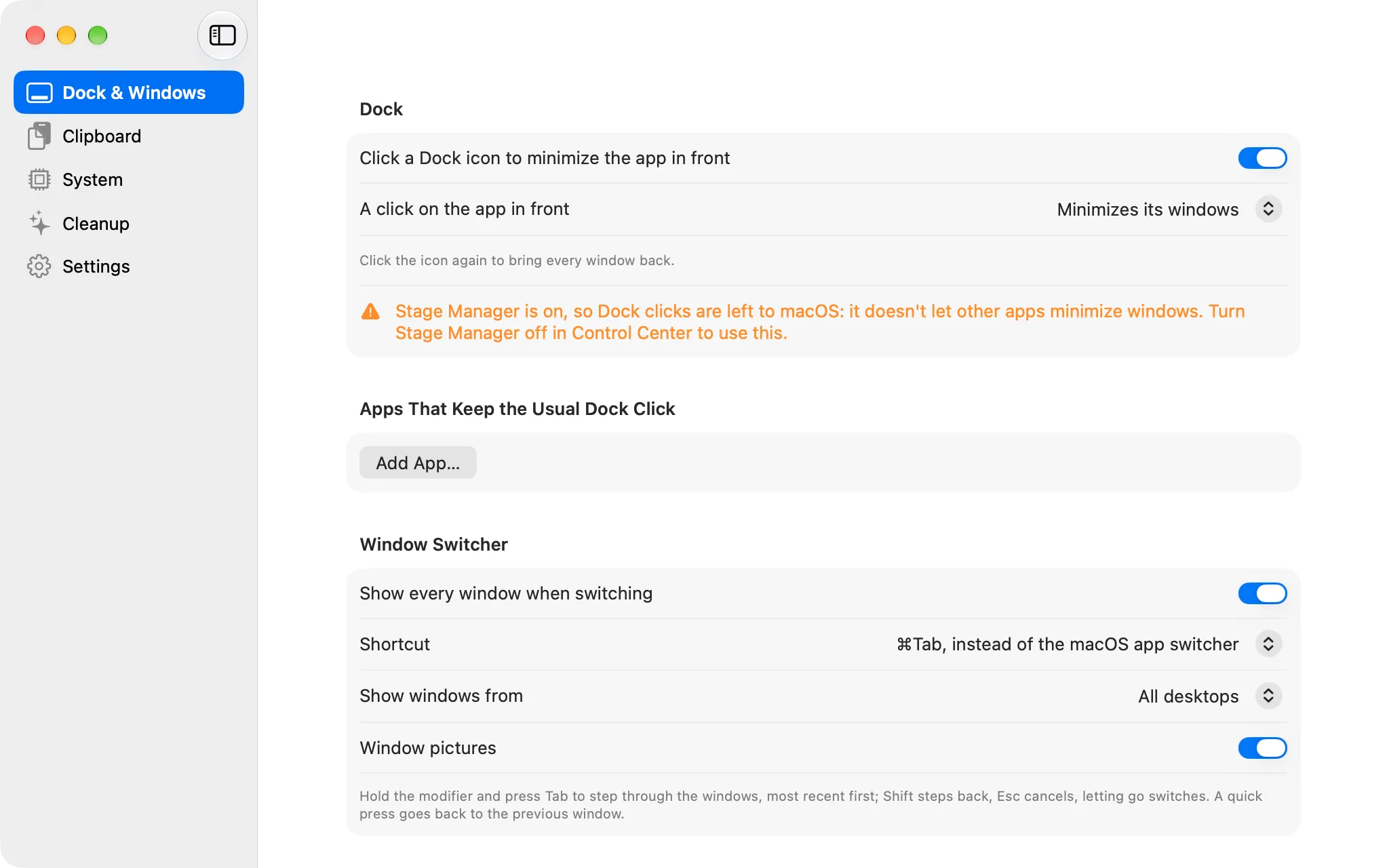
Click the Dock icon to minimize
Click the icon of the app you are using and its windows minimize, bringing forward the app you used before it; click again and they all come back, like the Windows taskbar. Hide the app instead if you prefer, or keep the usual click for some apps.
Minimize or hide, your choice
Apps that keep the usual click
Stands aside while Stage Manager is on, and says why
Clipboard history
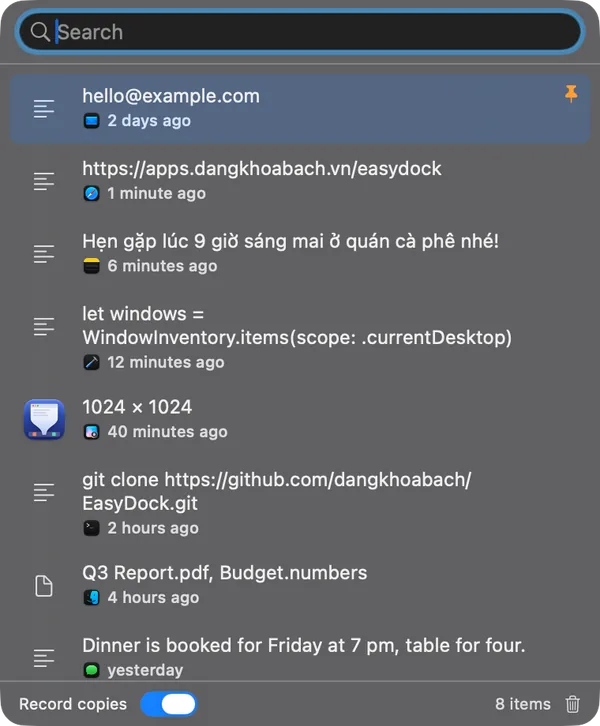
Everything you copied, a shortcut away
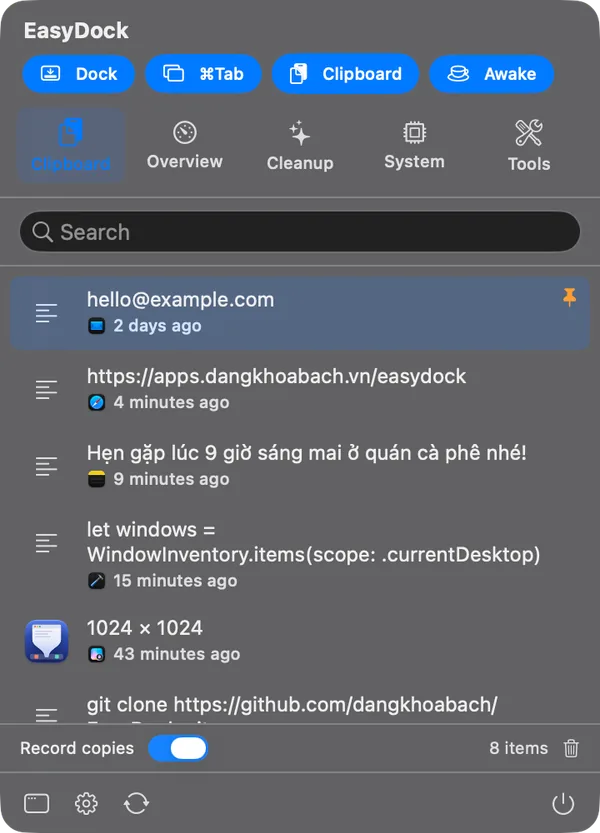
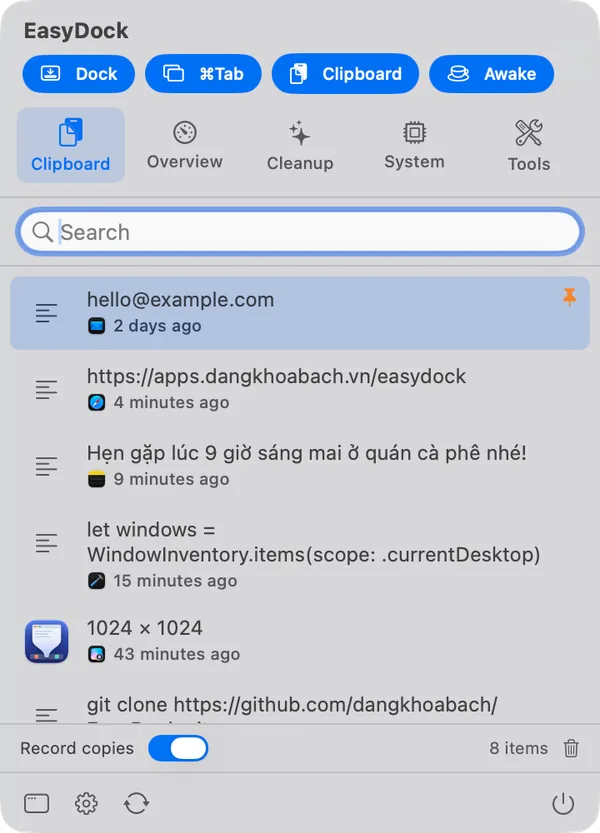
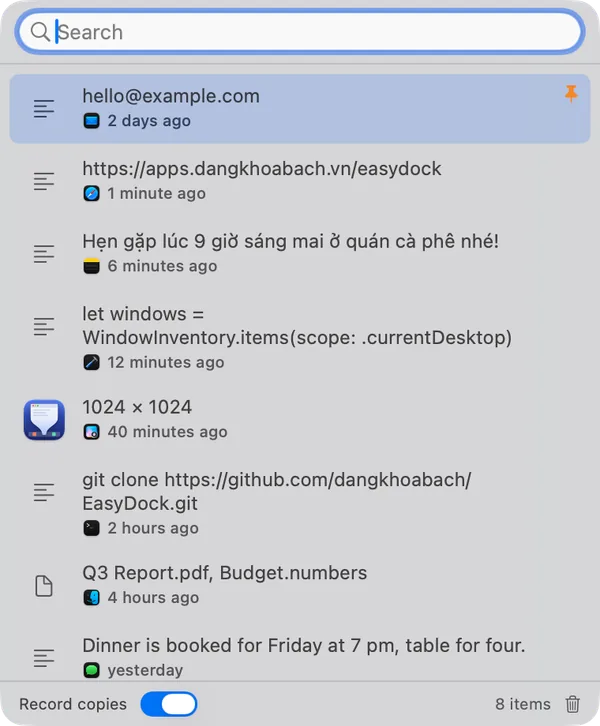
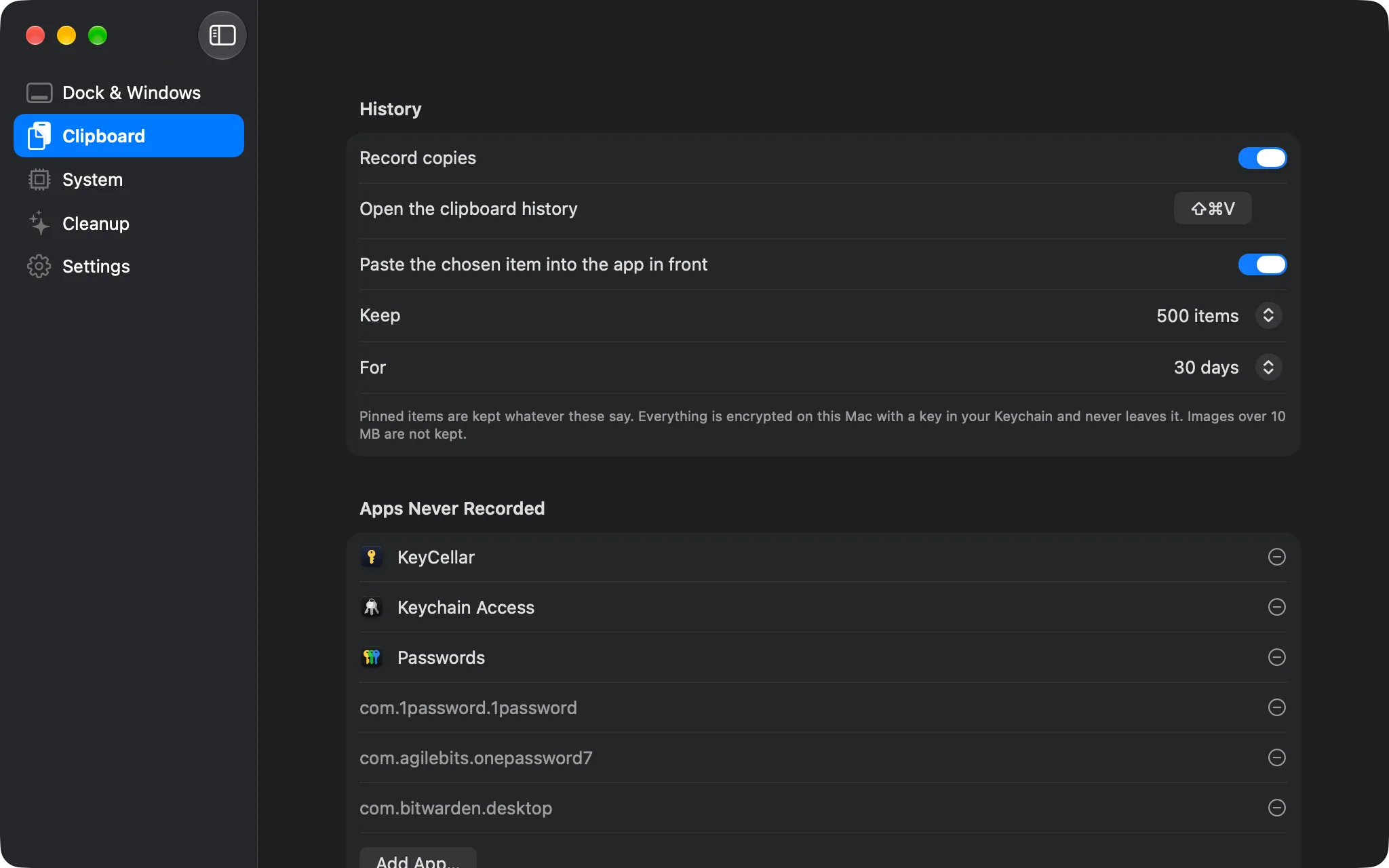
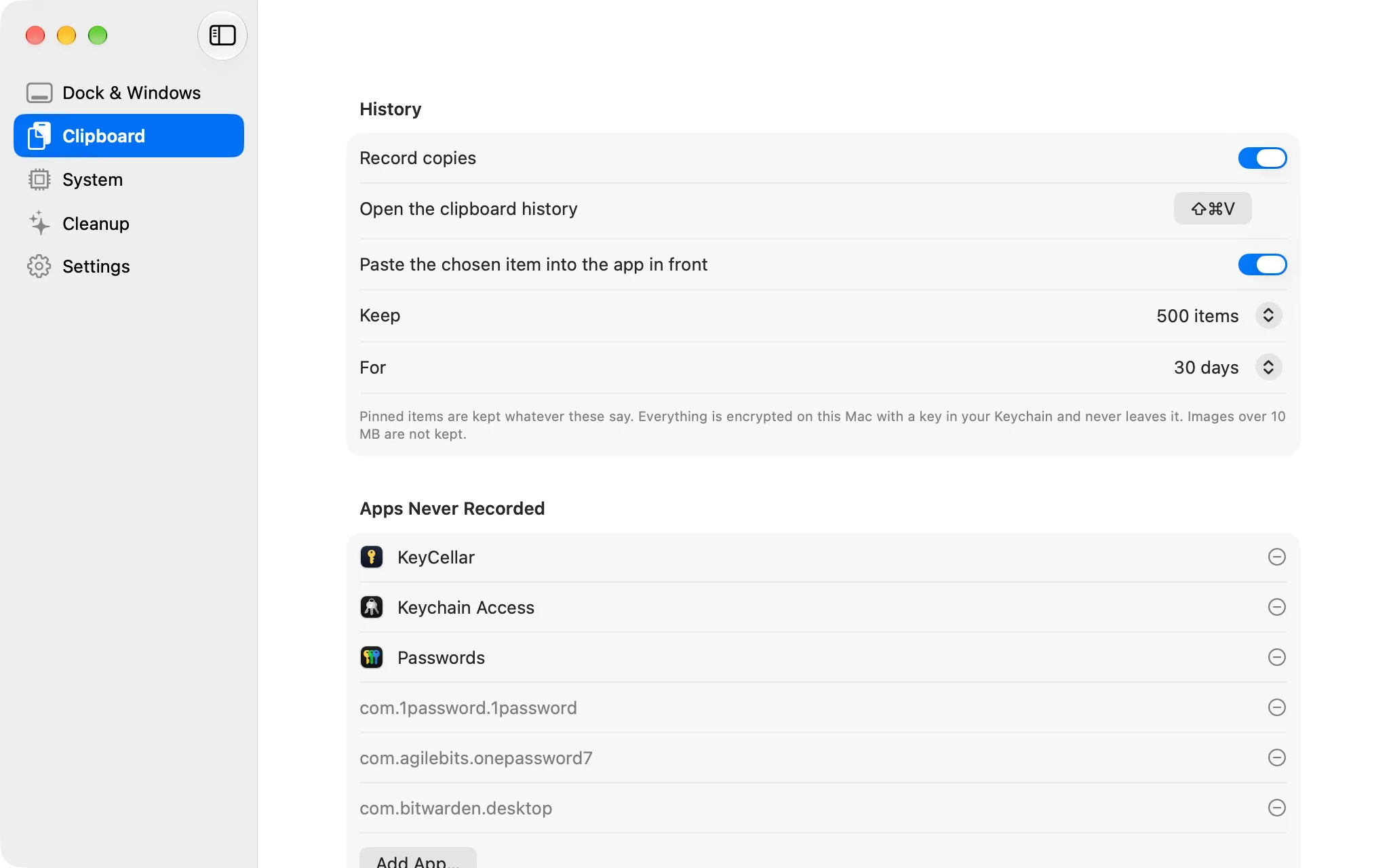
Text, rich text, images and files, searchable, with pinned items. Press ⌘⇧V and the history opens next to the pointer: Return pastes into the app in front, ⌥Return pastes plain text.
Search, pin and delete
Pastes straight into the app you were using
Keep as many items, for as many days, as you choose
Private by design
Encrypted, and never from your password manager
Every item is sealed with AES-GCM under a key in your login Keychain, and deleted items are overwritten. Copies that password managers mark as concealed are never recorded, and neither is anything copied in the apps you exclude.
KeyCellar, Keychain Access, Passwords, 1Password and Bitwarden excluded from the start
No account, no telemetry: the history never leaves your Mac
Clearing the history deletes its key too
Drop Zone
A shelf for files on their way
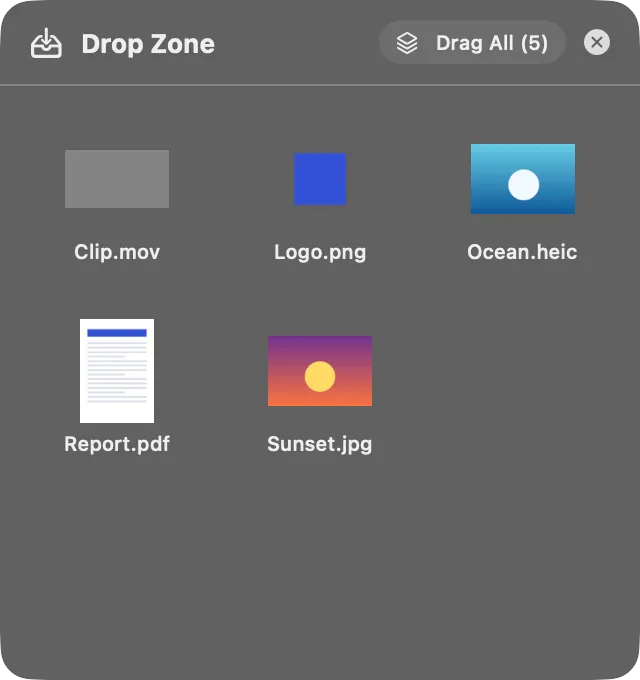
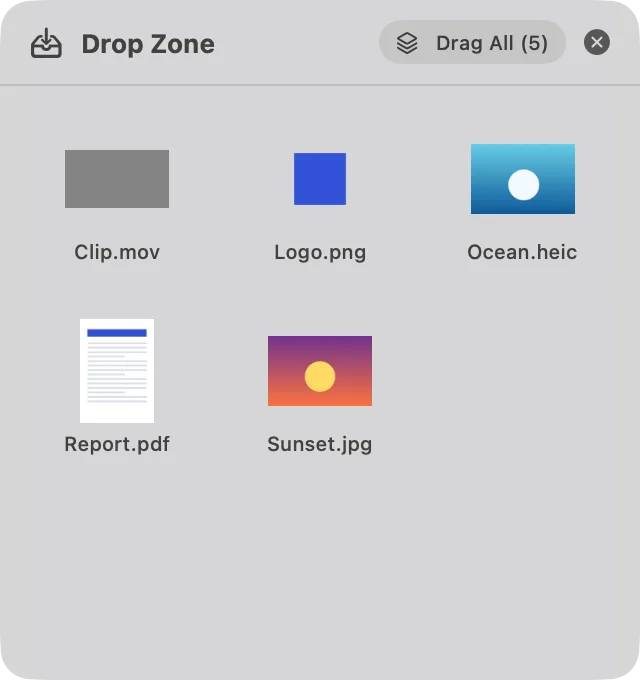
Shake a file as you drag it, drag it onto the notch, or press ⌃⌥Z, and a shelf opens above every window. Drop files, pictures, links and text on it, go to where they belong, then drag them out one by one or all at once.
Shake to open it, or drag onto the notch
Dragging out copies; hold ⌘ to move, as in Finder
Convert or extract what is on the shelf in one go
Quick Convert
Convert pictures and videos from Finder
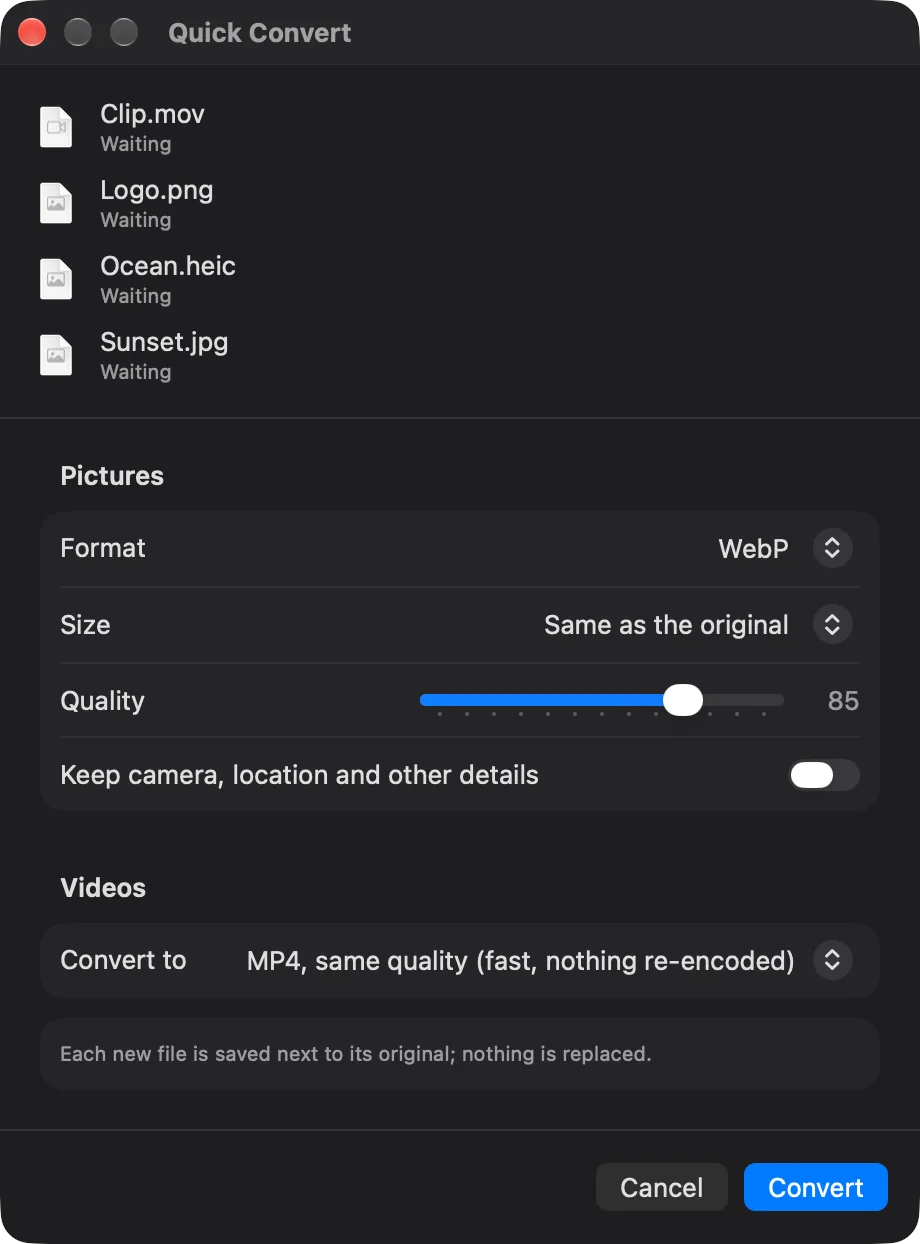
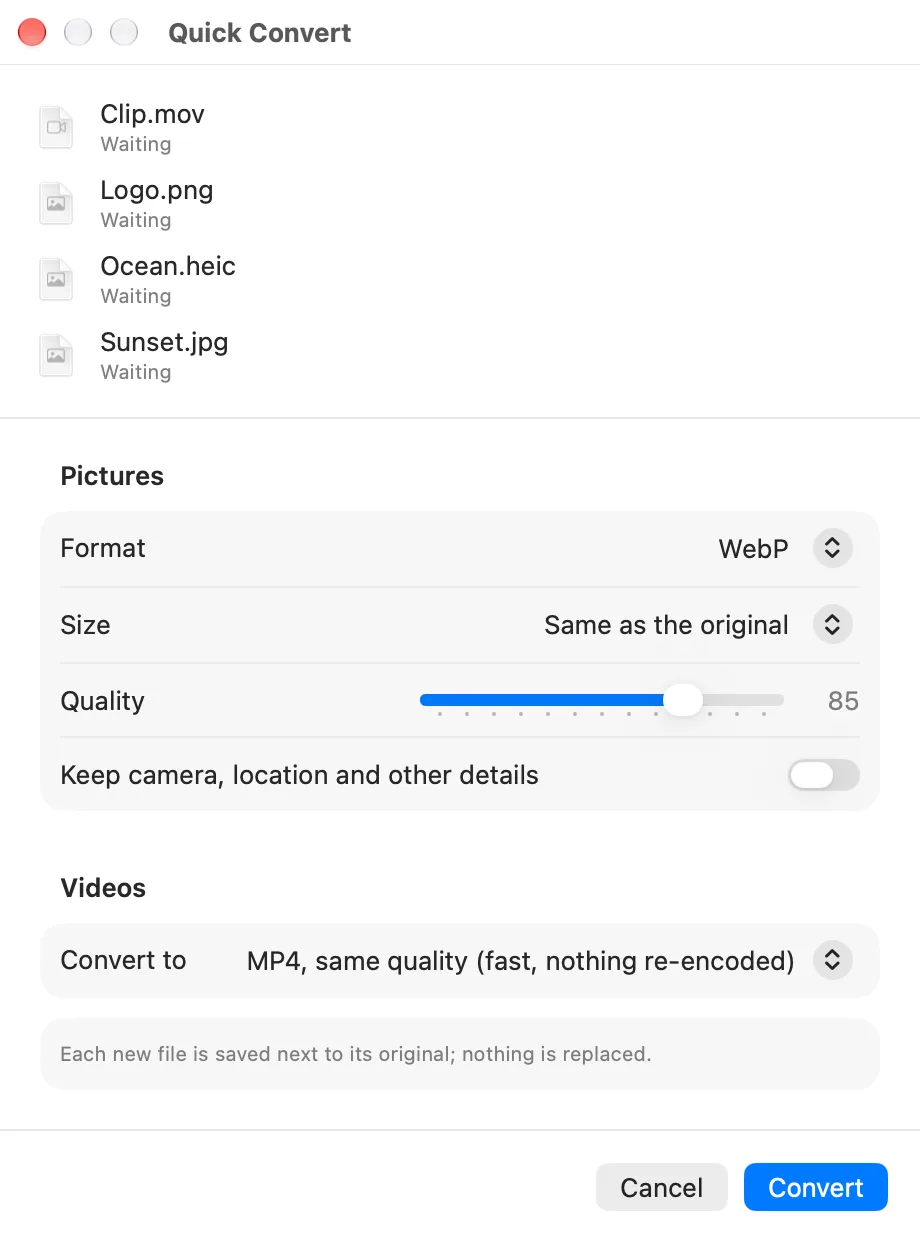
Right-click pictures or videos in Finder and choose Convert with EasyDock, or convert what is on the Drop Zone. Pictures become WebP, AVIF, HEIC, JPEG or PNG at the size you choose; videos become MP4, H.264 or HEVC, or just their sound in M4A.
Each result is a new file next to the original
Camera and location details left out unless you keep them
Done on your Mac: nothing is uploaded
Extract
Open RAR, 7z and every other archive
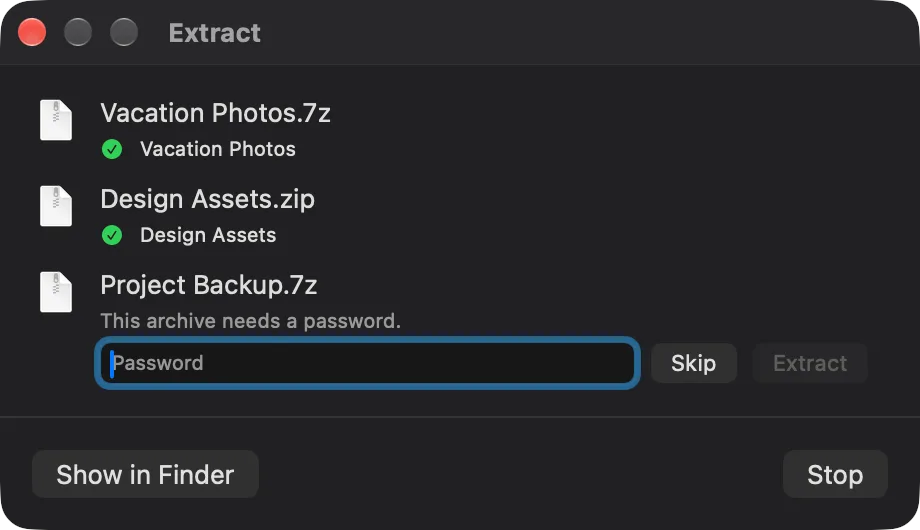
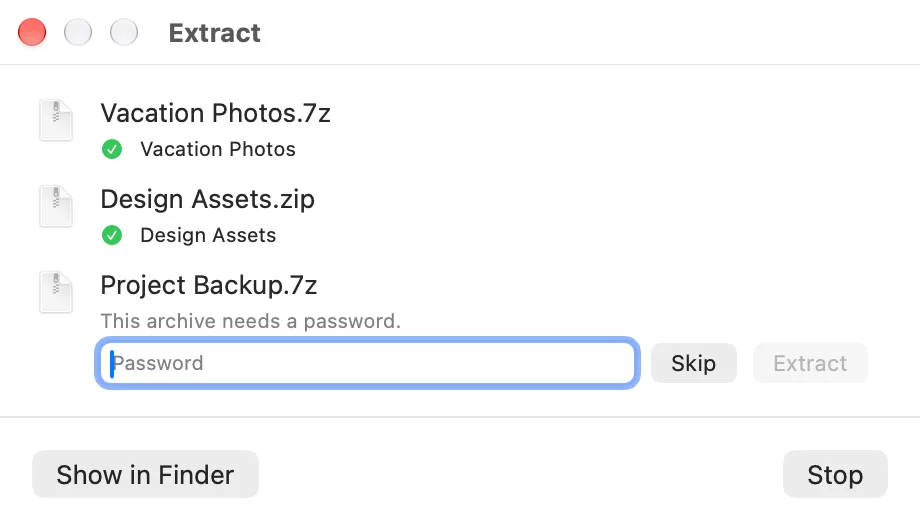
Double-click a RAR or 7z file, right-click an archive in Finder and choose Extract with EasyDock, or extract what is on the Drop Zone. With a password or split into parts, as ZIP, TAR, GZ, XZ, ZST, CAB or ISO: the contents go next to the archive, and nothing is replaced.
A password is asked for only when needed, and never kept
ZIP names from older Windows tools come out in their own language
7-Zip unpacks in a sandbox, and Gatekeeper still checks what comes out
Tools
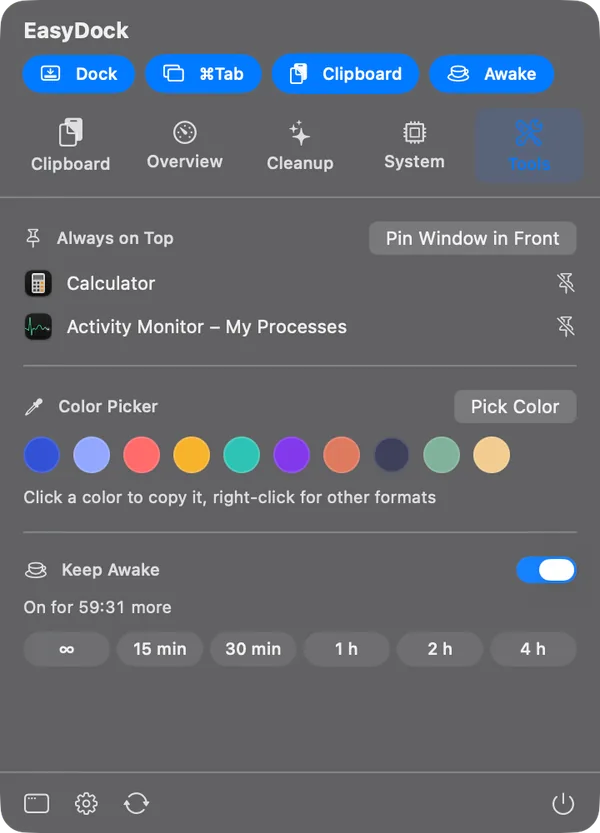
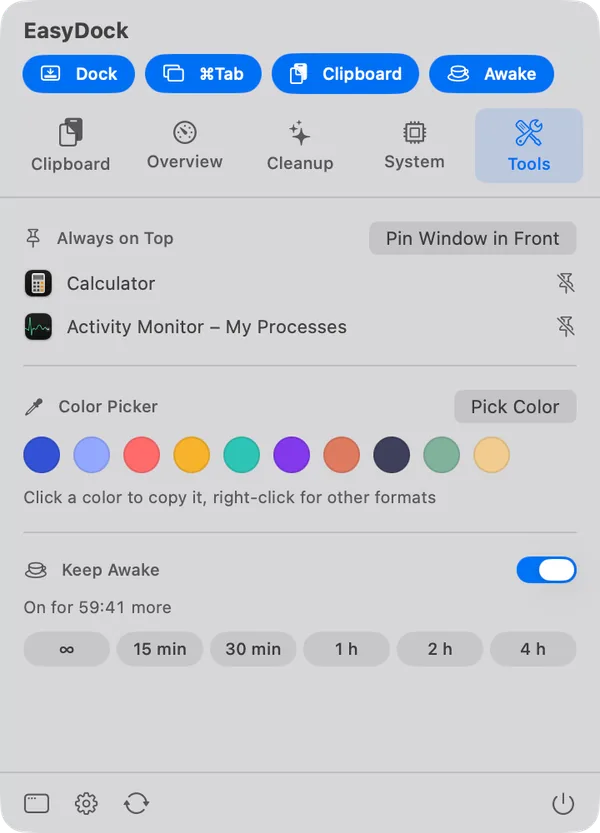
Pin a window, pick a color, keep the Mac awake
Three everyday tools in one tab. ⌃⌥T keeps the window you are using above the others with a live copy of it; ⌃⌥C picks a color anywhere on screen and copies it in sRGB; ⌃⌥A keeps the Mac awake for a while, until you turn it off, or while the apps you choose are open.
Always on Top, as on Windows: click the copy to use the window
Colors as HEX, RGB, HSL, SwiftUI or NSColor; named palettes as CSS, JSON or Tailwind
Keep Awake stops on battery at the level you choose
Cleanup
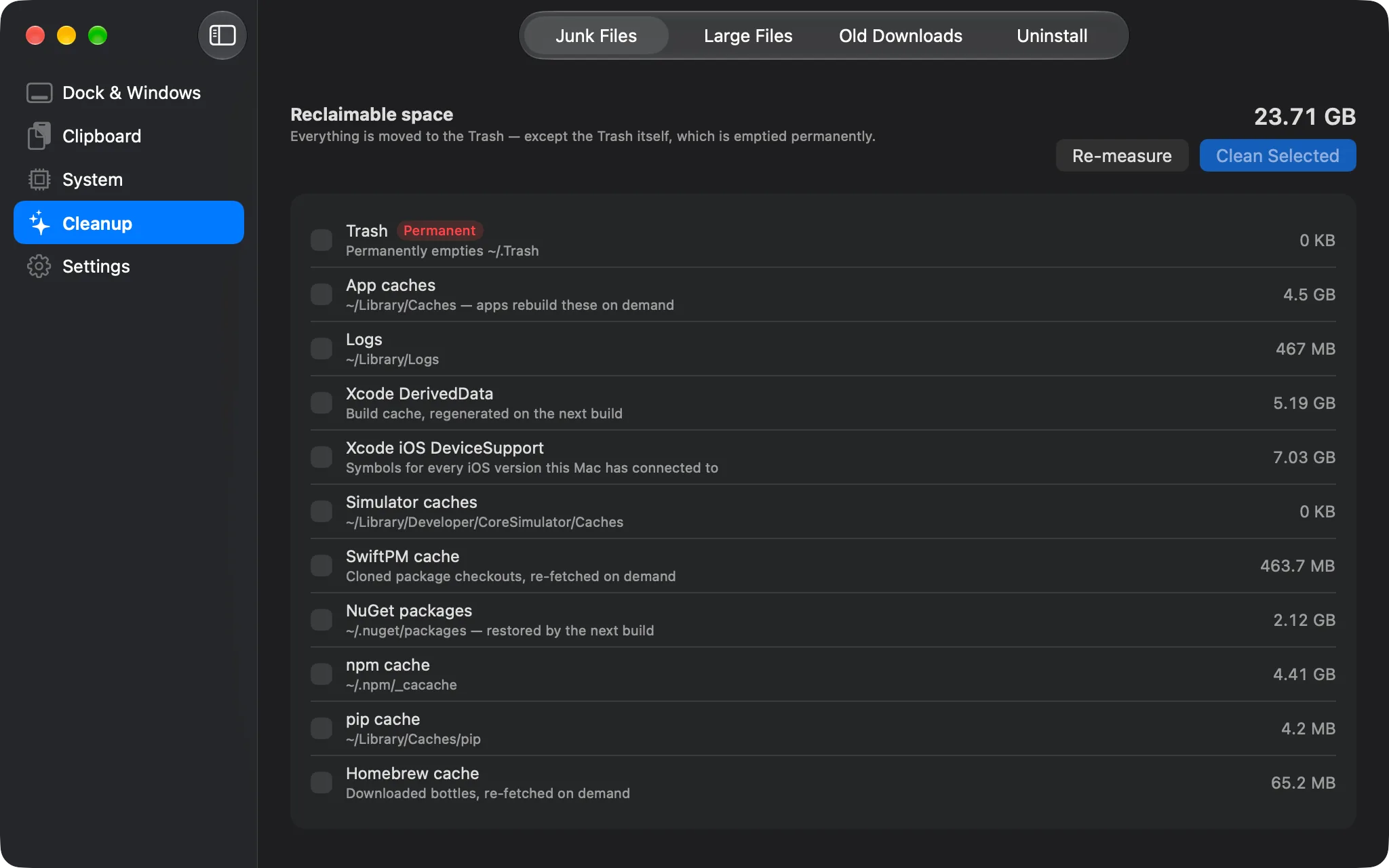
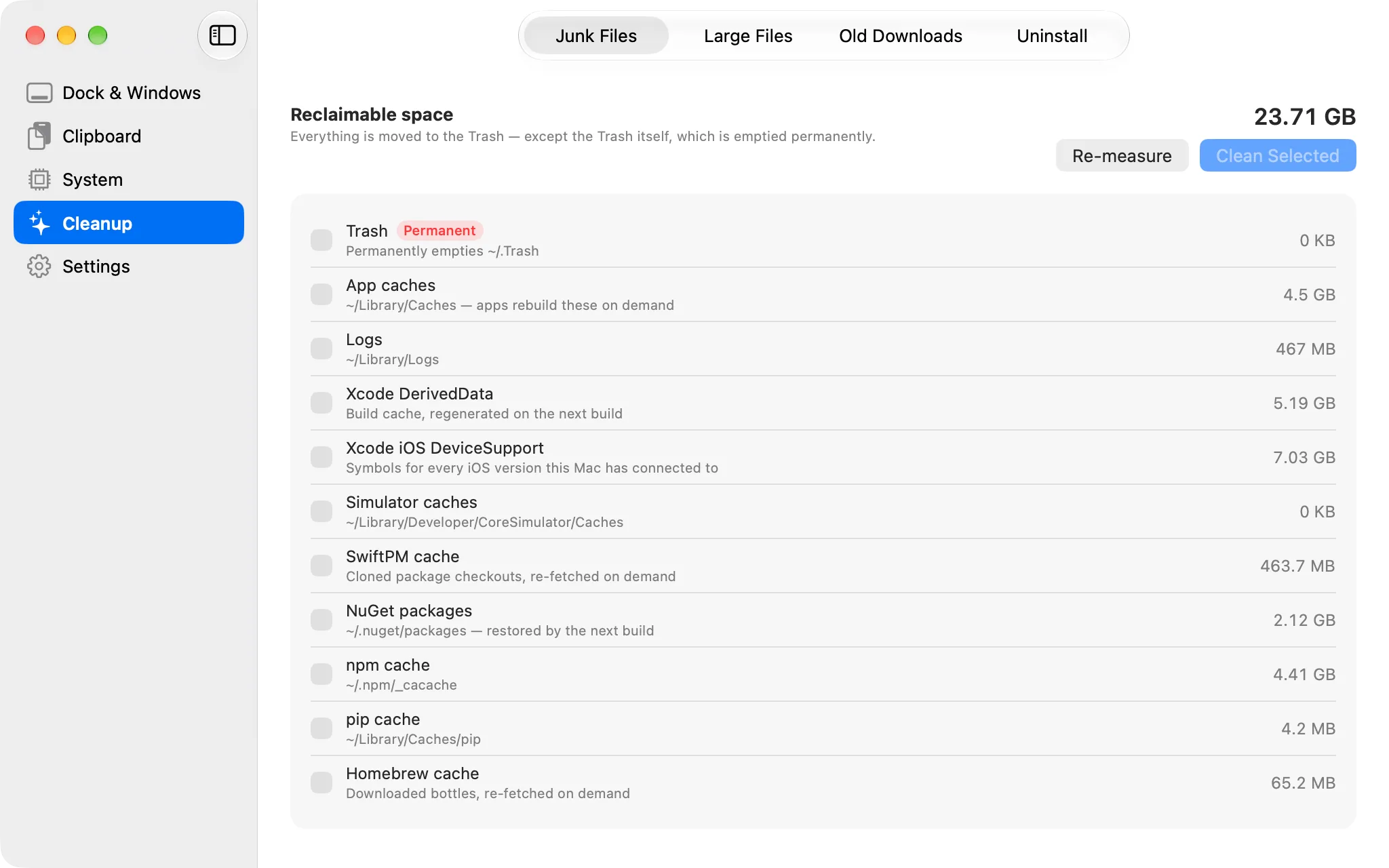
Free up space, safely
Caches and build leftovers, a scan for large files, old items in Downloads, and an uninstaller that lists every app with its size and when it was last opened, and removes several at once with what they left in your Library. Everything is previewed first and goes to the Trash.
Xcode, SwiftPM, npm, pip, NuGet and Homebrew caches
Notices an app you move to the Trash and offers to clean what it left
Background Items: the launch agents apps installed, with their app and memory
Also in the box
English and Vietnamese, light and dark appearance
When memory runs short, a notification names the heaviest apps you aren't using
Caches cleaned on a schedule, if you want
⌘Tab goes back to macOS when EasyDock quits, even if it is force quit
⌘Tab is handed back to macOS while you type in a password field
Every undocumented macOS call sits in one file; if macOS removes one, that feature turns itself off
Sparkle keeps the app up to date
Apple silicon and Intel, macOS 14 Sonoma or later
Sobre
EasyDock brings a few habits people miss from Windows to the Mac and keeps a handful of system tools in one place, most of them a click away in the menu bar. It is free and open source under the MIT license.
Key features
Click a Dock icon to minimize: clicking the icon of the app you are using minimizes its windows and brings forward the app you used before it; the next click brings them all back, like the Windows taskbar. Hiding the app instead is an option, and some apps can keep the usual click
A window switcher on ⌘Tab: every window with a picture and its title, most recently used first, including minimized windows and windows on other Spaces. A quick ⌘Tab goes back to the previous window; hold ⌘ to see the list, Tab and the arrows to move, Esc to cancel
Windows from every desktop or only the current one; ⌥Tab can be chosen instead, which leaves the system's ⌘Tab alone
Clipboard history: text, rich text, images and files, searchable, with pinned items. Open it from the menu bar or with ⌘⇧V next to the pointer; Return pastes into the app in front, ⌥Return pastes plain text
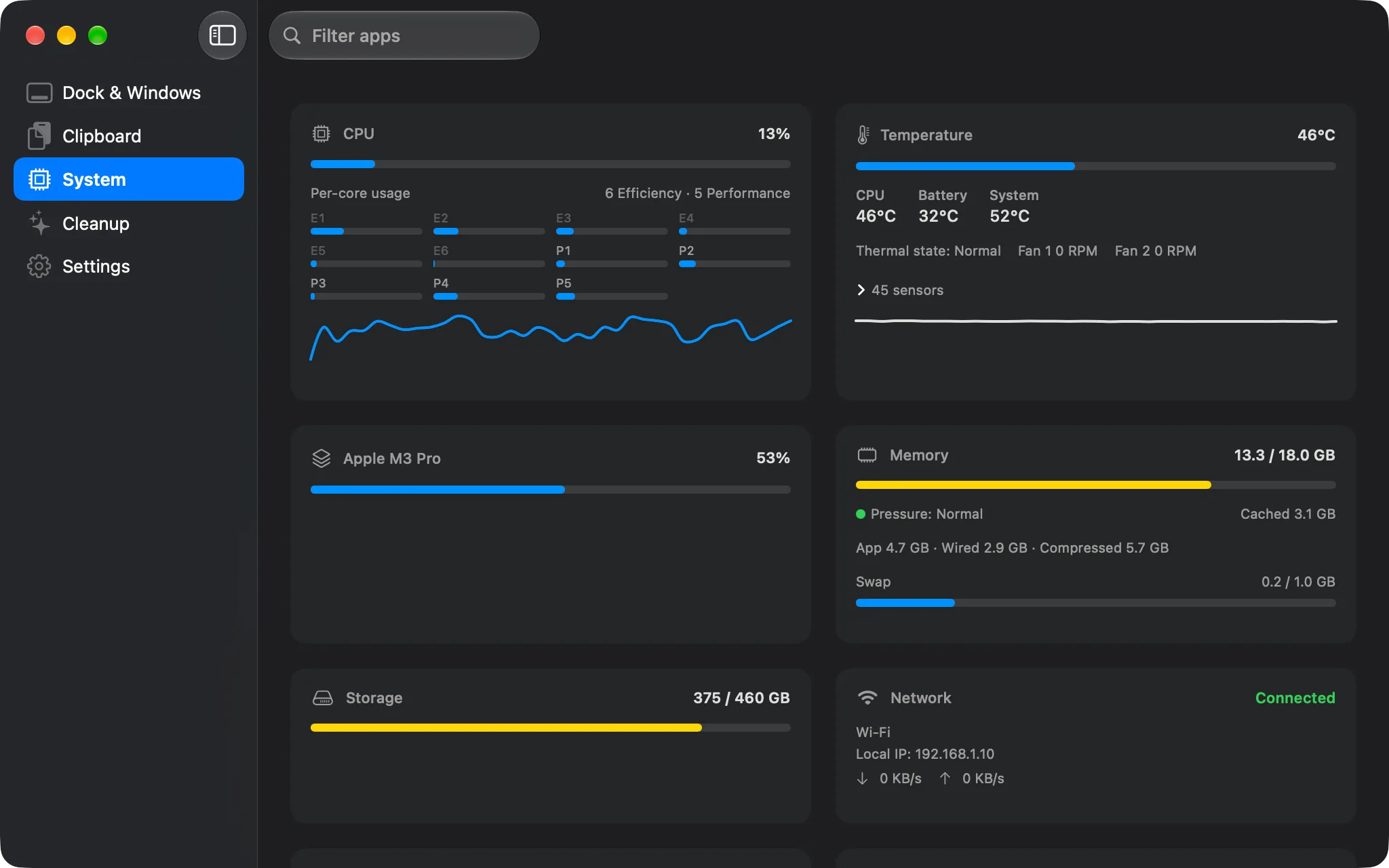
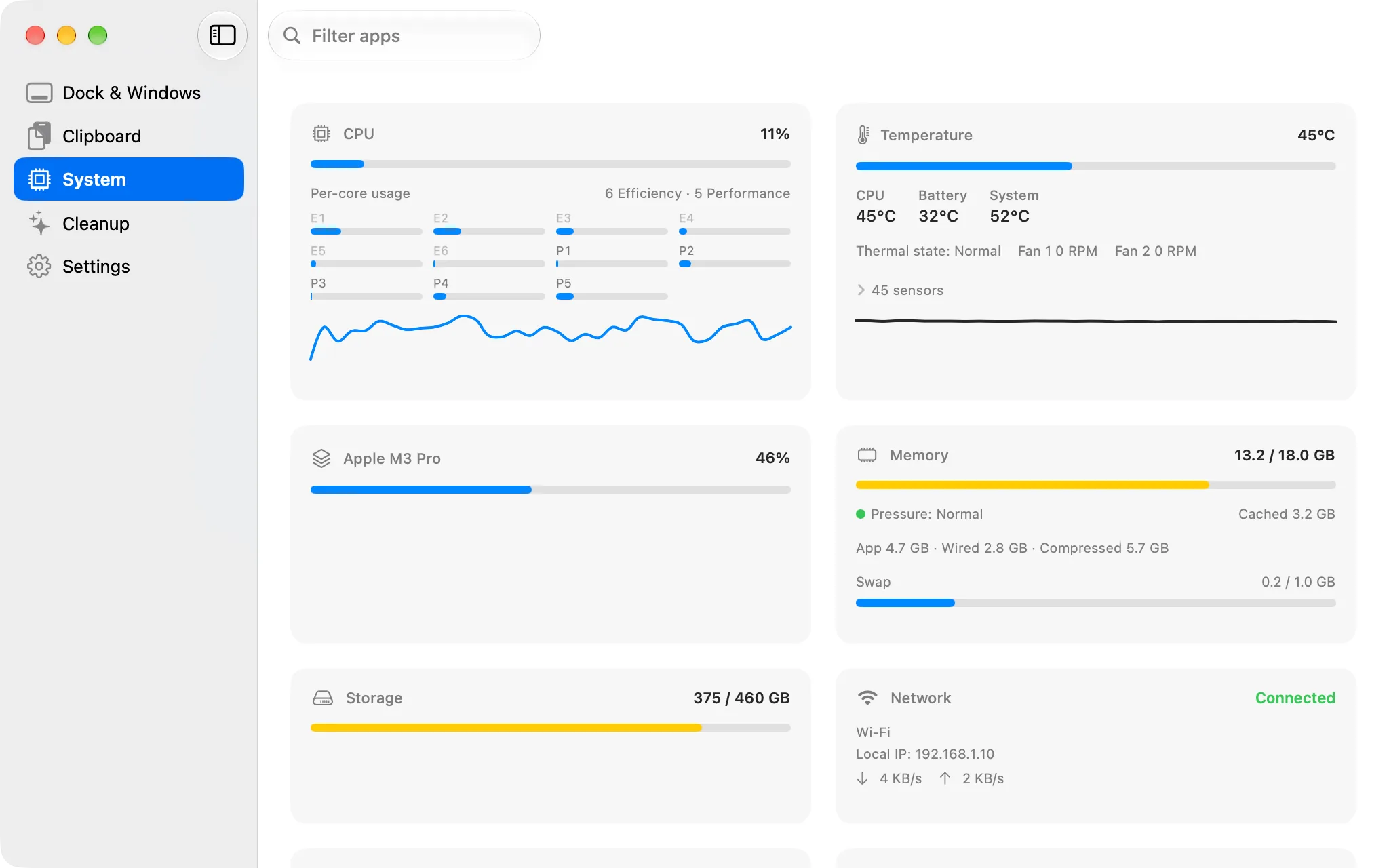
System: CPU with its performance and efficiency cores, GPU, memory, disks, battery and its health, temperatures and network, charts of the last hour or day, and every app and process with Quit and Force Quit, always asked first. Alerts when the Mac runs hot or the battery runs low, and when memory runs short, naming the heaviest apps you aren't using
Quit unused apps: apps you choose are quit once they haven't been in front for 15 minutes to 4 hours, the normal way, so unsaved work asks first
Cleanup: caches and build leftovers, a large files scan, old items in Downloads, and an uninstaller that lists every app with its size and when it was last opened, and removes several at once with what they left in your Library. It notices an app you move to the Trash and finds what apps removed long ago left behind. Everything is previewed first and goes to the Trash; caches can be cleaned on a schedule
Background Items: the launch agents and daemons apps installed, with their app, whether they run and their memory. Your own can be switched off, and leftovers of removed apps go to the Trash
Always on Top: ⌃⌥T keeps the window you are using above the others, as PowerToys does on Windows. EasyDock shows a live copy of it while you work in another window; click the copy to use the window. Up to three windows
Color Picker: ⌃⌥C picks a color anywhere on screen, converts it to sRGB and copies it as HEX, RGB, HSL, SwiftUI or NSColor; hold Shift to keep picking. Recent and pinned colors stay in the menu bar panel; named palettes copy as CSS variables, JSON, a SwiftUI extension or Tailwind 4, and a contrast check gives the WCAG ratio
Drop Zone: a shelf above every window for files, pictures, links and text while you go to where they belong. Shake a file as you drag it, drag it onto the notch, or press ⌃⌥Z; drag items out one by one or all at once
Quick Convert: from Finder's right-click menu or the Drop Zone, pictures to WebP, AVIF, HEIC, JPEG or PNG at the size you choose, and videos to MP4, H.264 or HEVC, or their sound to M4A. Each result is a new file next to the original
Extract: RAR, 7z and the other archives macOS can't open, with a password or split into parts, from a double-click, Finder's right-click menu or the Drop Zone; nothing is replaced
Keep Awake: keeps the Mac awake for 15 minutes to 4 hours or until you turn it off, or while the apps you choose are open, with ⌃⌥A or a click in the menu bar. The display can be left to sleep, it stops on battery at a level you choose, and a session carries on when EasyDock starts again on its own
A menu bar panel with a switch for each feature, the clipboard history, the Mac's vitals and busiest apps, cleanup, the process list and the tools, opened from the menu bar or with ⌃⌥D
Light, dark or system appearance, English and Vietnamese, Sparkle updates
Private by design
No account, no telemetry, no analytics. The only network request is the update check to updates.dangkhoabach.vn, which can be turned off
Every clipboard item is sealed with AES-GCM under a key in your login Keychain, and deleted items are overwritten. Clearing the history deletes the key too
Copies that password managers mark as concealed are never recorded, and neither is anything copied in the apps you exclude (KeyCellar, Keychain Access, Passwords, 1Password and Bitwarden from the start)
Window pictures are kept in memory only, never written to disk
Archives are unpacked by 7-Zip in a sandbox, and what comes out keeps the archive's quarantine
Requirements and limits
macOS 14 Sonoma or later, Apple Silicon or Intel
Accessibility for the Dock click, the window switcher, pasting and Always on Top; Screen Recording for window pictures and the copy of a pinned window. Without them those features stay off and the rest works
With Stage Manager on, the Dock click is left to macOS, and the switcher and a pinned window's copy show windows as they were last seen
With the lid closed on battery and no external display, the Mac sleeps even with Keep Awake on
The Trash is measured, and emptied from EasyDock, only with Full Disk Access; without it, Cleanup says so and asks Finder to empty it
Background Items switches off only your own launch agents; the others are switched in System Settings › Login Items
⌘⇧V is also "paste and match style" in some apps; the shortcut can be changed in Settings
Good to know
EasyDock turns the system's ⌘Tab off only while its switcher replaces it, and gives it back when it quits, even if it is force quit, and while you type in a password field
The app is signed with an Apple Development certificate and not notarized: open it the first time from System Settings › Privacy & Security › Open Anyway
The licenses of GRDB, Sparkle, libwebp and 7-Zip are in Settings › Third-Party Software
Histórico de versões
Apenas a versão mais recente está disponível para download. As versões anteriores são listadas apenas para referência.
v1.3.1Mais recente
Fixed
RAR files open with EasyDock once it is installed, even when VLC or another viewer claimed them first. Archives you set to another app in Finder's Get Info stay with it, and Tools › Extract still makes EasyDock the app for them
RAR, ZST, ARJ, LZH and split archive parts show EasyDock's icon with their format, instead of another app's icon. Finder can keep the icon it showed before until its cache is cleared: run sudo rm -rf /Library/Caches/com.apple.iconservices.store in Terminal, then restart the Mac
EasyDock declares the RAR type itself, so it opens RAR files on a Mac where no other app knows them
v1.3.0
New
Extract: double-click a RAR, 7z or other archive, or right-click it in Finder and choose Extract with EasyDock, or use the Drop Zone. RAR and 7z with or without a password, archives split into parts, and ZIP, TAR, GZ, BZ2, XZ, ZST, CAB, ISO, ARJ and LZH
A password is asked for in the archive's own row, tried first for the next archives, and never kept
The contents go next to the archive, in a folder named after it when there is more than one item, and nothing is replaced. ZIP names from older Windows tools come out in their own language
7-Zip does the unpacking in a sandbox that can only read the archive and write next to it, and what comes out keeps the archive's quarantine
Tools › Extract makes EasyDock the app that opens RAR and 7z files, and can move an archive to the Trash once it is extracted
v1.2.1
New
Drop Zone: a shelf above every window for files, pictures, links and text. Shake a file as you drag it, drag it onto the notch, or press ⌃⌥Z, then drag the items out where they belong
Quick Convert: right-click pictures or videos in Finder and choose Convert with EasyDock, or use the Drop Zone: pictures to WebP, AVIF, HEIC, JPEG or PNG at the size you choose, videos to MP4, H.264 or HEVC, or their sound to M4A
Background Items: see the launch agents and daemons apps installed, which app each belongs to and whether it runs; switch off your own, and move the ones removed apps left to the Trash
The uninstaller lists every app with its size and when it was last opened, sorts them by name, size or last use, and removes several at once with what they left
It also notices an app you move to the Trash and offers to clean what it left, and finds what apps removed long ago left behind
Color Picker: hold Shift to keep picking, pin colors, keep named palettes and copy them as CSS, JSON, SwiftUI or Tailwind, and check the WCAG contrast of two colors
Memory: a notification names the heaviest apps you aren't using when memory runs short, and apps you choose can be quit once they go unused for a while
The System page says which apps use the most CPU while macOS slows the Mac down to cool it
Settings lists the third-party software EasyDock uses, with its licenses
Fixed
A Keep Awake session carries on when EasyDock starts again on its own, as after an update; quitting EasyDock still ends it
The menu bar panel's switches keep their titles on one line in English
Cleanup no longer shows the Trash as empty when it holds files: macOS lets only apps with Full Disk Access see it, so the Trash row now says it needs that permission, and emptying asks Finder
v1.1.0
New
Always on Top: press ⌃⌥T to keep the window you are using above the others. EasyDock shows a live copy of it while you work in another window; click the copy to use the window
Color Picker: press ⌃⌥C to pick a color anywhere on screen. It is copied as HEX, or as RGB, HSL, SwiftUI or NSColor, and the last 20 colors stay in the menu bar panel
Keep Awake: keep the Mac awake for 15 minutes to 4 hours or until you turn it off, or while the apps you choose are open, with ⌃⌥A or a click in the menu bar. It stops on battery at the level you choose
A Tools tab in the menu bar panel and in the main window
Fixed
Opening the menu bar panel no longer brings back the main window after you closed it
v1.0.0
New
The first release: click the Dock to minimize, a window switcher on ⌘Tab, clipboard history, System and Cleanup, from the menu bar
Free and open source under the MIT license: github.com/dangkhoabach/EasyDock
 EasyDock